 Penstock
Guide / Start here
Penstock Web
Penstock Web is the BPMN, DMN and form editors in a browser tab, for a project folder on your own machine. One command starts it, and the window around the editors is a project tree, tabs for your files and a sidebar of actions, with no editor or plugin to install.
Start it
- Install the command line:
npm install -g @kern0x1b/penstock-cli. - In a terminal, run
penstock webwith the folder of your project:penstock web ./processes. Without a folder it starts on a welcome page. - Open the link it prints. A browser opens on it by itself.
- Work in the page. Stop the server in the terminal where it runs.
Everything stays on your machine. The page can be used only through the link the command prints, which holds a key that is new on every run. The options, the key and what the server will and will not do are on penstock web.
Open a project
With no folder given, the page opens on Open a project, which says Choose the folder that holds your diagrams, decisions and forms. Nothing leaves this machine. Under it are the recent projects, each with a button to take it off the list. A project whose folder has gone is disabled and says Folder not found.
- Press Open a project…. A folder browser opens.
- Choose a place on the left: Home, Computer or one of the Recent projects. Or type a path in the Folder box.
- Open folders until you are in the one you want. A folder that holds a
penstock.yamlor diagrams, decisions or forms is marked project, and the browser says which. A link to another folder is marked link. Show hidden folders lists the rest. - Press Open project.
The browser lists folder names only. It never shows what is inside a file. Once a project is open, the project name in the title bar is a switcher: it lists the recent projects, Open another project… and Close project. When some open files have unsaved changes, Penstock asks first and offers Save all. The tabs of a project close when the project changes, and each project remembers what it had open.
The window
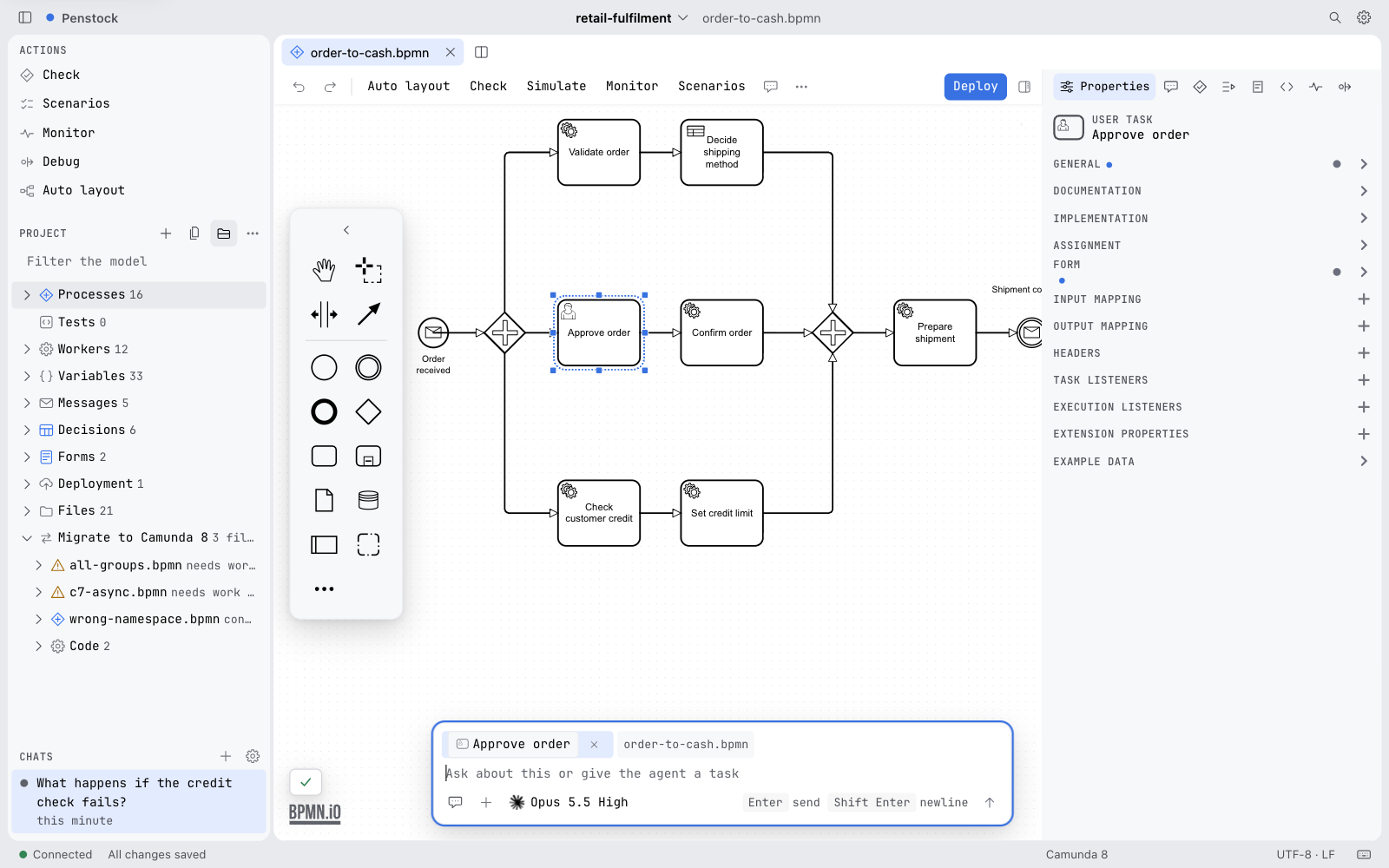
| Title bar | The button that shows and hides the sidebar, the Penstock dot and name, the project switcher with the open file beside it (a dot marks unsaved changes), Open file (the magnifier) and Settings (the gear). The project's name is only in the title bar. The tree's own heading says Project. |
| Sidebar | One island at the left, 272 pixels wide. Drag its edge to change the width, between 240 and 400, or focus the edge and press the arrow keys. The width and whether it is shown are remembered. |
| Editor groups | The files you open, in tabs, to the right of the sidebar. See below. |
| Bottom strip | Whether the page is connected to the server, whether the open file is saved, the engine of the project, the licence (a press opens the licence dialog), the encoding and line endings of the open file, and the shortcuts. |
The sidebar
The sidebar has three sections, in this order, told apart by space and a small heading.
- Actions. Check, Scenarios, Monitor, Debug and Auto layout. Each is a row that does what the same action does in the editor's toolbar and its More menu, for the open file. A row is disabled, and its tooltip says Not available for the open file, when the file cannot do it. A count appears on the right only where something waits or failed: the problems of the check in the error colour, the scenarios as passed of all, the instances waiting in the Monitor.
- Project. The project as a tree. See below.
- Chats. The conversations with the AI agent of the project, each with its state. It is there when the AI chat is on. Sending a message needs Pro. The agents and the place of the chat are set from Settings.
The border between the tree and the chats can be dragged, and moved with the up and down arrow keys. Below 900 pixels of window width the editors fill the window and the sidebar opens as a drawer over them, behind a scrim that closes it. Focus canvas, in the More menu of an editor, hides the sidebars in one go and a second press shows them again; it is never remembered.
The project tree
The tree is the same project model as in the other tools: the processes, their elements, decisions, forms, workers and the code behind them. A press on a node opens its file, or the element in it. Group by files in its toolbar turns the model round, file by file, and the filter above the list narrows it. Links to code are part of Pro, and a locked tree says so, with an Unlock button.
The project's own files are managed here, without leaving the page:
- New file makes a BPMN diagram, a DMN decision or a form, empty or from an example. The extension is added when it is missing.
- The menu of a row has New folder, Rename (F2), Duplicate, Move to…, Delete (Del), Copy path, Copy relative path and, on a file, Download. A move never overwrites. Delete asks first and says the file is removed from the disk; a folder is deleted only when it holds nothing but diagrams, decisions and forms.
- Drop
.bpmn,.dmnor.formfiles on the page, or use Upload file… in the tree's menu, and choose where to save them in the project. They are copied; the originals stay. - The same menu has Download the open file and Download project as .zip, which gives the project without its dependencies, version control and build output.
The tree rescans by itself when files change on disk.
Tabs, groups and splits
Every file you open gets a tab. Open a file from the tree, with Open file, or from the welcome area. Open file filters by name as you type, shows the files you opened lately, and takes > as the start of a command, so it is also the list of the page's commands.
The editors sit in groups of tabs, which you can split, join and resize:
- Drag a tab to the middle of a group to join it, or to the side of a group to split. Drop it between tabs to reorder.
- The row menu of a tab has Split right, Split down, Close others, Close to the right, Close all and Reveal in project tree.
- Drag the border between two groups to resize them, or focus it and use the arrow keys.
- A group is never narrower than 480 pixels, the width the editor's toolbar needs. A split that would leave one narrower is not offered: a drop joins the group instead, Split right is dimmed, and a file opened beside joins the group you are in.
- The layout is saved with the session, for each project, and Reset the panel layout brings back the first one.
The shortcuts for opening, saving, closing, switching tabs and splitting are on penstock web, and the page lists them under Keyboard shortcuts.
Saving, and changes made elsewhere
- Save. A file is saved to disk when you save it, and not before. The bottom strip says Unsaved changes, Saving… or All changes saved. An empty or broken file opens and says what is wrong, instead of being hidden.
- Autosave. Settings has Save changes automatically with a delay between 1 and 600 seconds, 5 when you turn it on. A file is written after that many seconds without edits.
- Changed on disk. Penstock never saves over a file that changed on disk after you opened it. The tab shows a banner with Reload from disk, Keep my version and Compare, which lists the lines only in your version and the lines only on disk. A file deleted on disk keeps your changes until you save it again.
- Closing the page. Unsaved changes are kept in the browser. When you open the project again, a notice offers Restore unsaved changes or Discard.
- Several tabs of the same diagram. Two editors on one diagram do not overwrite each other's changes.
A BPMN file without a layout is laid out in memory when it opens and is written only once you edit it, so opening a file never changes it on disk.
Code, and comparing with Git
- Go to code. A class or a bean that a diagram names opens in a read-only code tab. Where several places match, you pick one. See Code links.
- Highlighting and language servers. Code tabs and the XML text of a file are highlighted for the common languages of a project. For completion, hover, diagnostics and go to definition, install a language server on the machine; without one the tab says which. A line of code that a diagram element names has a marker, and a click opens the diagram on that element. See penstock web for the servers.
- Code badges. A service, send, receive, business rule or user task, or a call activity, shows a small mark that says whether the code behind it was found: quiet when it is, amber when it is missing, blue with a count when several places match. Show code badges in the More menu hides the marks.
- Compare with the last commit. The visual diagram diff opens in a tab named after the file, with the count of what was added, removed, changed and moved. A file that is not in a Git repository says so.
- Rename a linked name. After you rename a job type, a topic or a class, Penstock offers to rename it in the other files that write it, with a plan to review and a check that nothing changed in between. It is a Pro feature.
- Templates and import. Connector templates are installed into the project and diagrams are imported into it from the page, and copy and paste works between tabs.
Project screens
Some screens belong to the whole project, not to one file. In Penstock Web they are in the command palette and the sidebar: Drift (environments as columns, resources as rows, a chip per state), Policy, the Migration workspace, Connections (a node of the sidebar with a finding for every problem, and an action that opens the map) and Agents. The More menu and the palette of the BPMN, DMN and form editors also have Create evidence pack… and Refactor…. See Drift, promote and protected environments, Policy pack, Camunda 7 to Camunda 8, Connections map, AI agents of Camunda 8, Evidence pack and Refactoring across the project. A .cmmn file opens in a read-only viewer (CMMN case models), and JSON files in the element template folders open in the element template editor.
Settings and the licence
Settings in the title bar has the theme (Follow the system, light, dark or Dracula), the two suggestions of the editor, autosave and Manage AI agents…, which turns the AI chat on or off, chooses where conversations open, and installs, updates and removes agents. The choices are kept in ~/.penstock/preferences.json, the same file as in the other tools.
The licence is the one of the machine, ~/.penstock/license.json. Press the licence in the bottom strip to see the plan and the days left of a trial, enter a key, buy Pro or Team (the payment page opens in a new tab) or release the machine. See Buying and signing in.
Common problems
- "This page has lost its link to Penstock."
- The server was restarted, and the key it printed before no longer works. Use the new link from the terminal. Your unsaved changes are still in the browser.
- "The connection to the server is lost."
- The server stopped or the machine slept. Unsaved changes stay in the page. Start
penstock webagain, and press Retry. - A split is not offered.
- A group is never narrower than 480 pixels. Close the sidebar or make the window wider.
- The sidebar is gone.
- Below 900 pixels of width it is a drawer. Open it with the button at the left of the title bar. It can also be hidden by Focus canvas; press it again.