 Penstock
Guide / Draw and edit
AI chat
Ask an AI agent about the diagram you have open, or give it a task, from an input at the foot of the editor. The agent runs on your own account, reads your project through Penstock, and every change it wants to make is shown to you before it happens.
What it is
The AI chat is a conversation with an agent, inside the BPMN, DMN and form editors. Penstock does not bring a model of its own. It starts the agent you choose, such as Claude Code, Codex, Gemini CLI or OpenCode, and talks to it over the Agent Client Protocol. The agent runs on your machine and on your own account. Penstock gives it its MCP server, penstock mcp, so the agent can read diagrams, the rules that check them, the scenarios and the links to your code, the way the command line does. See The MCP server.
The agent does not write to your project behind your back. When it wants to change a file, it asks. A change to a diagram is drawn on the canvas first, and you accept or reject it. See Review the changes an agent proposes. Which agents there are, and how to install and turn them on, is on AI agents.
The chat is part of Penstock Pro, and Team in a pipeline. The input and the chats are shown to everyone. When you send a message without the licence, you get the usual offer at that moment: what the AI chat does, and the choice to buy Pro or to enter a licence key. Nothing is added to the chat. See Plans and licence.
Where the AI chat is, by tool
JetBrains
In a JetBrains IDE from 2023.1 the input is at the foot of every BPMN, DMN and form editor, and the chats are listed in a Chats section under the tree of the Penstock tool window. The agents screen is the page Settings | Tools | Penstock | AI agents. Sending a message needs Pro. See The Penstock tool window.
VS Code
The input is at the foot of every BPMN, DMN and form editor, and the chats are in the Chats view of Penstock. The agents screen is the command Penstock: AI agents. Sending a message needs Pro.
Command line
Not available on the command line. The command line has no editor to hold the input. An agent you run yourself can still read the project through penstock mcp. See the MCP server page.
Ask a question
- Open a diagram, a decision or a form. The input is at the foot of the editor, in the middle of the canvas.
- Click it and write what you want to know or have done: Ask about this or give the agent a task. Select an element first if the question is about one.
- Press Enter. Shift+Enter starts a new line.
- The answer appears in a card just above the input, with the agent's work folded into one row while it runs. When the agent has something to change, it asks you first.
- Write the next message in the same input. The conversation goes on in the same chat.
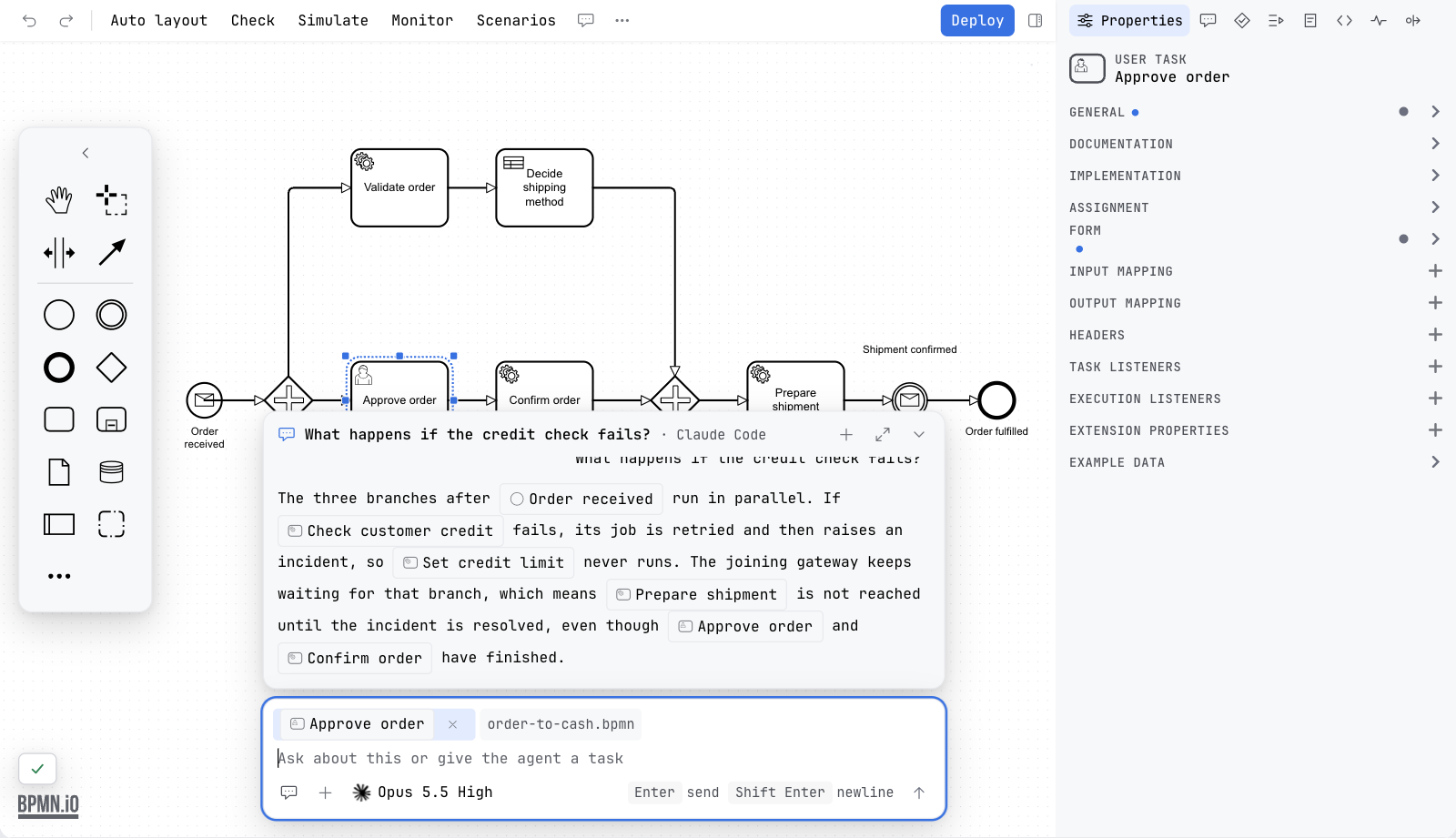
If the agent is not signed in or not installed yet, the card says so and offers the next step. See When the agent cannot answer.
Where the chat lives
One preference, AI chat, decides where the conversation is shown. It is in the agents screen, under General, and is the same in every tool. See AI agents.
| Setting | What you get |
|---|---|
| At the bottom of the editor | The default. The input sits at the foot of every editor, with the conversation in a card above it. The sidebar has a Chat tab as well. |
| In the sidebar | The conversation lives in the Chat tab of the sidebar, and no input sits at the foot of the editor. |
| Off | No input, no chats and no agent process. The agent is not started, and the Chat tab and the toolbar button are gone. |
The choice is kept in ~/.penstock/preferences.json as aiChat, with the values off, bottom and sidebar. A value Penstock does not know is read as bottom.
The input
The input is the same in the three editors. From top to bottom it holds the messages that wait, what the message is about, the text, and a row of controls.
| The text | One line to six, then it scrolls. Enter sends. Shift+Enter is a new line. |
| Chips | What the message is about. The file you are in is always there. The elements you have selected on the canvas are added by themselves, and each has an x that takes it out of the message. Past four elements the row says how many more there are. The agent is told the file and the selected elements. |
| + | Attach a file or mention an element. Opens a list of the elements of the diagram and the files of the project, with a search field. A pick becomes a chip. |
| The chat title | A button at the left of the row. It lists the chats of the project to switch to, and New chat at its top. |
| The settings button | Shows the agent's logo and what is set, such as the model and its level. It opens the settings of the next message. See below. |
| Send, or Stop | Send is in the accent colour and disabled while the text is empty. While the agent works it becomes Stop, a neutral square. |
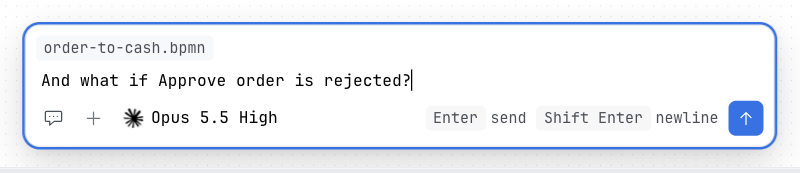
An input that is empty and not in use rests as one line, with the placeholder and the send button. Clicking it or typing in it opens the full row, and clearing it and leaving it rests it again. When the row is short, the chat title becomes an icon first, then the key hints go. On a canvas too narrow for the input, it is one button, Ask the agent, at the foot. It shows a spinner while the agent works and a hand while a question waits, and opens the whole input over the canvas.
While the agent is working
- Queue. Press Enter and the message is queued instead of sent. It appears as a row above the chips, Queued: …, and goes out when the turn ends. The x on the row takes it back.
- Stop. Stop cancels the turn. A question that is open is answered as cancelled. If the agent has not ended the turn ten seconds later, Penstock stops the agent process, and the turn ends as stopped.
- Esc never stops the agent. It folds the card and leaves the input.
Agent, model, thought level and mode
The settings button shows the agent's logo, the model's name and the level, such as Opus 5.5 High, and the mode after a dot only when it is not the agent's default. Pressing it opens a small form above the button.
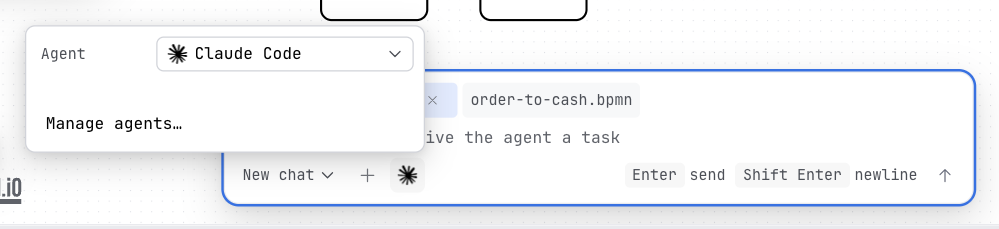
| Agent | The agent for this chat. Pick one from the list. |
| Model | The model the agent offers. |
| Thought level, Mode | Shown when the agent offers them. A few short values appear side by side. A longer list opens inside the same form, with a description under each value and a ‹ to go back. |
| Manage agents… | At the foot. Opens the agents screen. |
The arrow keys move, Enter picks, and Esc goes back from a list, or closes the form from the rows. A change made while the agent works applies from the next message. The model and the level are remembered for each agent. Changing the agent of a chat that already has messages starts a new chat, and the list says so.
The card and the Chat tab
The card is the conversation, right above the input. It scrolls inside and opens at the latest message. Its header has the chat's title and three buttons: New chat, which is off while the agent works or a question waits, Open the chat in the sidebar, and Fold the chat.
- Your messages and the agent's answers. Names in an answer are chips: an element, a file, a class or a scenario. Hover a chip and the element is lit on the canvas. Press it and the element is selected, or the file opens.
- The agent's work is folded into one row for each stretch, in words, not in raw output: Read order-process.bpmn, Checked order-process.bpmn - 2 problems, Analysed the flow - 1 dead end, Ran 3 scenarios - 3 passed. A spinner and the current step show while it runs, and a disclosure opens the steps after.
- The card stays out of the way. While you work on the canvas, with a press, a drag or a selection, the card shrinks to its header and the last lines. Hovering it, or focusing the input, brings it back. A question that waits never shrinks.
- Fold. The fold button, or Esc, leaves the input alone with one line that says what goes on: Agent working… or Waiting for you. Pressing the line brings the card back. Folding never stops the agent and never answers its question.
- Expand. When a chat gets long, or an answer carries a file, a quiet Expand the chat line appears under the header. The card never expands by itself.
The Chat tab of the sidebar holds the same conversation, with the same chips, work rows and questions, and an input of its own at its foot. The expand button and the AI chat button on the toolbar open it. While it is shown, the input at the foot of the editor is hidden. Leave the tab and the card comes back, with the same chat. A question that waits opens the Chat tab when the chat is in the sidebar.
The verification receipt
When an agent changes project files, the chat shows a card under the answer, for example Verified: 0 new problems, 3 scenarios pass, with chips. The Chat tab shows the full receipt. The verdict and the counts are free; auto-repair, which hands new Check errors back to the agent in the same turn, is Pro. See AI receipt and auto-repair.
Questions
When the agent wants to write to a file, it stops and asks. The card shows one sentence, Apply 3 changes to order-process.bpmn?, the changes as a list (+ added, ~ changed, - removed), and, for a diagram, what Penstock checked: Check is clean, or how many problems to look at. Then you choose.
| Deny | Refuses the write. It holds the focus, and Enter does not press it. |
| Allow | Lets the agent write. The note beside it says that undo takes it back. |
| Show on canvas | Folds the card and shows the proposal on the diagram, where each change can be accepted or rejected. See Review the changes an agent proposes. |
A write is never remembered: the answer holds for that one question, and there is no Always. A question that waits sets a warning dot on the toolbar button and, with the chat in the sidebar, opens the Chat tab. A question nobody answers is cancelled after a while, and the turn is stopped.
The AI chat button and the shortcut
The toolbar has an AI chat button, an icon with a tooltip, pinned by default. It opens the Chat tab, stays pressed while the tab is shown, and a second press returns to the tab you had before. It is also in the More menu and the command palette. Its shortcut is in the sheet of keyboard shortcuts and on the shortcuts page of your tool. See The toolbar and the More menu.
Chats belong to the project
A task often spans a process, a decision and the code of its workers, so chats belong to the project and not to a file. Each editor has its own current chat. It opens on the latest chat its file took part in. With none, your first message starts a new one, so two diagrams never mix their conversations. The title of a chat is the first line of its first message until you rename it.
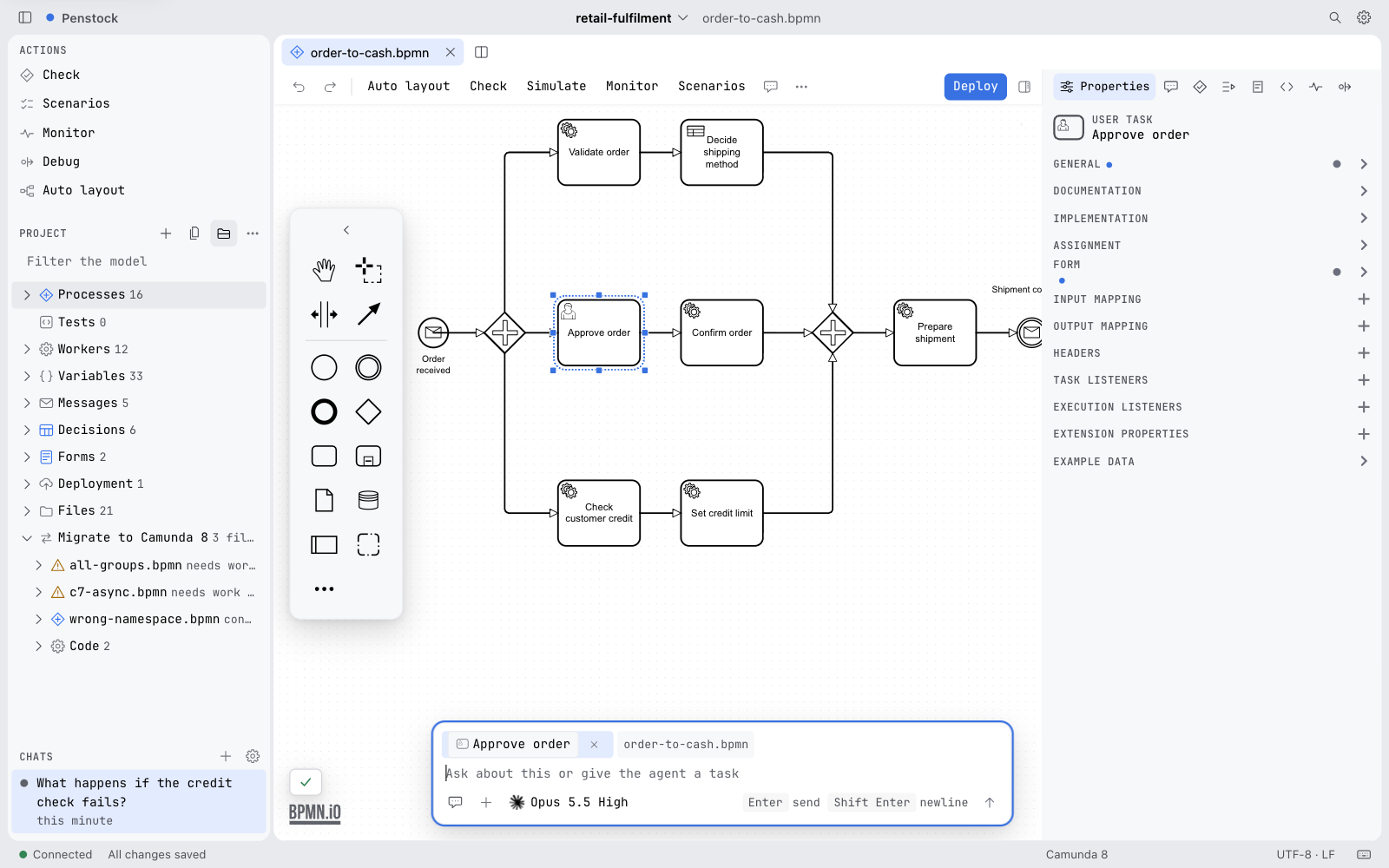
The chats are listed with their state, in the place each tool has for them:
| Tool | Where the chats are |
|---|---|
| The side panel of your tool | A Chats section under the project tree. Where it is, by tool. |
| VS Code | The Chats view of Penstock. |
| Penstock Web | The Chats section of the sidebar, under the project tree. |
Each row has the title, on at most two lines, and one word of state: a spinner and working, a warning dot and waiting for you, the time when it is idle, or the reason when it stopped with an error. The + in the heading starts a new chat, and the gear opens the agents screen. A right click, or the menu key, offers Rename and Delete. F2 renames and Delete deletes. Deleting asks first, and removes the chat and its messages from the project. Choosing a chat opens it in the Chat tab of the active editor.
There is one agent session per project, for every window and every tool. A chat that works in one window shows as busy in the others, and a message typed there queues behind it. A chat made or changed in one tool appears in the others within a second. Only the text you have not sent yet belongs to one editor.
When the agent cannot answer
The card says what is wrong in a sentence, with at most two buttons.
| You see | What it means |
|---|---|
| No agent found. No agent is installed on this machine. with an install command and a copy button | Install an agent with the command, or press Choose another agent or Agent settings. See AI agents. |
| The agent is not signed in | Sign in to the agent in its own app, then press Try again. When the agent offers a sign-in, a Sign in button starts it. |
| The agent has ended | The agent stopped without an answer. The reason from the agent is shown. Press Try again. |
| Unable to reach the agent service | The editor could not reach the part of Penstock that runs the agents. Press Try again. |
What you see
- An input at the foot of every editor, a card above it, and a Chat tab in the sidebar.
- A chip for every element, file, class or scenario the agent names.
- The agent's work as short sentences, and its questions as a list of changes with Deny, Allow and Show on canvas.
Common problems
- Sending asks me to buy Pro.
- The AI chat is part of Pro on your machine and Team in a pipeline. The offer shows what it does and lets you buy Pro or enter a licence key. See Plans and licence.
- There is no input at the foot of the editor.
- AI chat is set to Off or In the sidebar. Change it under General in the agents screen. See AI agents.
- It says Penstock needs Node.js with npm to start the agent service.
- The chats of a project are served by
penstock agent servefrom the command line, one for every window. Install Node.js with npm, and try again. - The agent answers, but I cannot find where it changed the diagram.
- A change waits for your answer. Press Show on canvas in the question, or open the Chat tab. See Review the changes an agent proposes.
- I cannot start a new chat.
- New chat is off while the agent works or a question waits, because it would drop the question. Answer it, or press Stop.