 Penstock
Guide / Share and move
Import a diagram
Turn a draw.io, Visio, Signavio, Bizagi or Flowable diagram into a BPMN 2.0 file, open a Camunda Modeler project, and get a list of everything that could not be carried over.
What can be imported
| From | Files |
|---|---|
| draw.io (diagrams.net) | .drawio, .xml, compressed or not |
| Visio | .vsdx |
| Signavio | .bpmn exported by Signavio |
| Bizagi | .bpmn exported by Bizagi, and a package that holds a BPMN file |
| Flowable | .bpmn written by Flowable, converted to Camunda 7 or Camunda 8 |
| Camunda Modeler | A project folder, read and reported on. See below. |
These are mapped: tasks and their kinds, events and their triggers, boundary events, gateways, sub-processes, pools, lanes, sequence flows, message flows and default flows, text annotations and data objects. The positions and the bends of connectors are kept.
These cannot be read: a Bizagi .bpm package, the old binary Visio .vsd, and XPDL. The message says what to do instead: from Bizagi, export BPMN 2.0 (a .bpmn file). From Visio, use File > Save As and choose Visio Drawing (.vsdx). From a tool that wrote XPDL, export BPMN 2.0.
Steps in the editor
- Open any diagram in the editor. Open More and choose Import from another tool…. Choose the source and, for Flowable, Camunda 7 or Camunda 8.
- Pick the file. The report of the import is shown first, Diagram imported, with what was and was not carried over.
- Press Save as… and choose where to put the new BPMN file. It suggests a name:
order-process.bpmnfromorder-process.drawio. - The new diagram opens.

Read the report
Nothing is dropped silently. The heading leads with the count, for example 3 not imported, and the report has three groups. What could not be mapped is in the warning colour; the red is kept for a file that could not be read at all.
| Group | What it says |
|---|---|
| Not imported | These have no BPMN meaning and are not in the new diagram. For example a cloud shape, or a line not attached to two shapes. |
| Guessed | These were read by what they look like. Check that they are what you meant. For example, elements outside every pool went into the nearest pool. |
| Not carried over | BPMN 2.0 has no place for these, so they are not in the new diagram. |
If nothing was left out, the report says Everything in the file was mapped. Connectors keep the route they were drawn with. Auto layout (Pro) can tidy the result.
In a terminal
penstock import diagram.drawio -o process.bpmn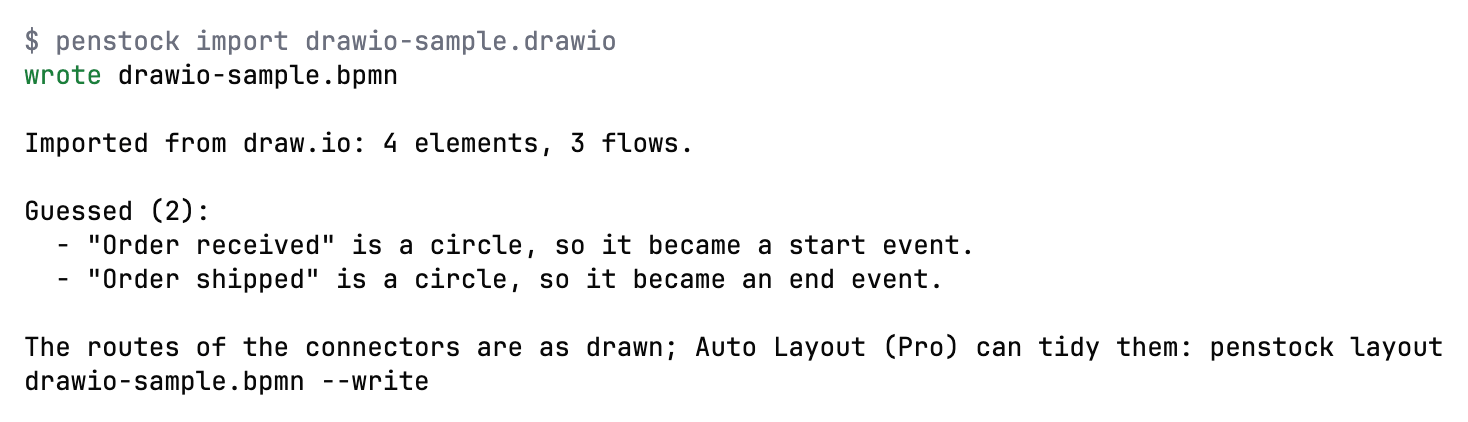
| Option | What it does |
|---|---|
--from modeler|signavio|bizagi|flowable | Says which tool the input came from. A file that came from another tool is refused. |
--to camunda8 | With a Flowable file: convert to Camunda 8. The default is Camunda 7. |
--report | Writes nothing and only lists what was converted, kept and not mapped. |
-o <file>, --force | The output file, and replacing a file that is already there. |
Nothing is written if the file already exists, unless you pass --force or name another output with -o. A file that could not be read writes nothing at all. import is free, so it can run in a pipeline: convert a draw.io file kept in the repository before the check runs.
Import from your tool
JetBrains
Only from the editor, with More | Import diagram… as described above. To import files without opening an editor, use the command line.
VS Code
Only from the editor, with More | Import diagram… as described above, or Penstock: Import diagram… in the Command Palette. To import files without opening an editor, use the command line.
Command line
$ penstock import order-process.drawio
wrote order-process.bpmn

Imported from draw.io: 9 elements, 7 flows, 2 pools, 2 lanes.

Not imported (2):
  - "Legacy system" (cloud) has no BPMN meaning, so it was not imported.
  - "to be decided" is not attached to two shapes, so it was left out.

Guessed (1):
  - 2 elements outside every pool went into the nearest pool: "Call the customer if it takes longer", "Order".
-o <file.bpmn>: the file to write. Default: next to the source, with the extension.bpmn. For a source that is already a.bpmnthe default isname.penstock.bpmn.--force: replace a file that is already there. Without it, an existing file stops the command.--format json: print the result as JSON for a tool.
See Every command.
Flowable files
A Flowable file is converted to Camunda 7, or to Camunda 8 with --to camunda8. These are converted: assignee, candidate users and groups, due date, form key, class, delegate expression, async, execution and task listeners, fields and form properties. What has no equivalent stays in the file and is listed.
Signavio and Bizagi extensions are no longer cut out. They stay in the file in their own namespaces, and the report says that no engine uses them.
A Camunda Modeler project
Free, with no time limit.
penstock import <folder> --from modelerIt reads the project and says what Penstock does with each part:
- The element template folders:
.camunda/element-templates,resources/element-templatesand the user-level folder. It says which one Penstock reads as it is and which one to list underelementTemplates. - The
.bpmnlintrcrules: which are known to Penstock Check and which are not. - The flags and settings files.
- The plugins. They are listed only and never run.
- How many
.bpmnfiles carrycamunda:orzeebe:extensions. They are never changed. - Which Camunda Modeler shortcuts have a Penstock action. With
-oit writes them as a VS Code keymap to merge intokeybindings.jsonby hand. The keymap stays a file to merge by hand; see below for each tool.
The Camunda Modeler keymap, by tool
JetBrains
The IDE takes a bundled keymap only through an internal extension point, so Penstock does not install the Camunda Modeler keymap for you.
VS Code
Penstock does not bind the zoom shortcuts of Camunda Modeler for you, since they are the window zoom keys of VS Code. Merge the keymap file into keybindings.json by hand.
Command line
penstock import <folder> --from modeler -o <file> writes the shortcuts as a VS Code keymap file.
Imported files are untrusted
A file over 64 MB, and an XML that declares entities or is nested too deep, are refused. The project scan never follows a link, never leaves the folder and never reads or runs a plugin.
For an AI agent
The import_diagram MCP tool does the same. It only previews unless write is true, and then writes a new file inside the project root only, never over an existing one without force. See The MCP server.
What you see
- A new
.bpmnfile, opened in the editor. - A dialog called Diagram imported, or the same lines in the terminal, that says what was imported and what was not.
Common problems
- "This file could not be imported".
- The dialog says why. Common reasons: an unsupported format (
.vsd, a Bizagi.bpmpackage), a draw.io page larger than 32 MB when unpacked, or a file that is not a diagram. - A shape I drew is missing.
- Read the Not imported group. It names each one and says why.
- The imported diagram looks untidy.
- Connectors keep the route they were drawn with. Press Auto layout (Pro).
- Elements ended up in the wrong pool.
- See Guessed. Elements outside every pool go into the nearest one. Drag them where they belong.